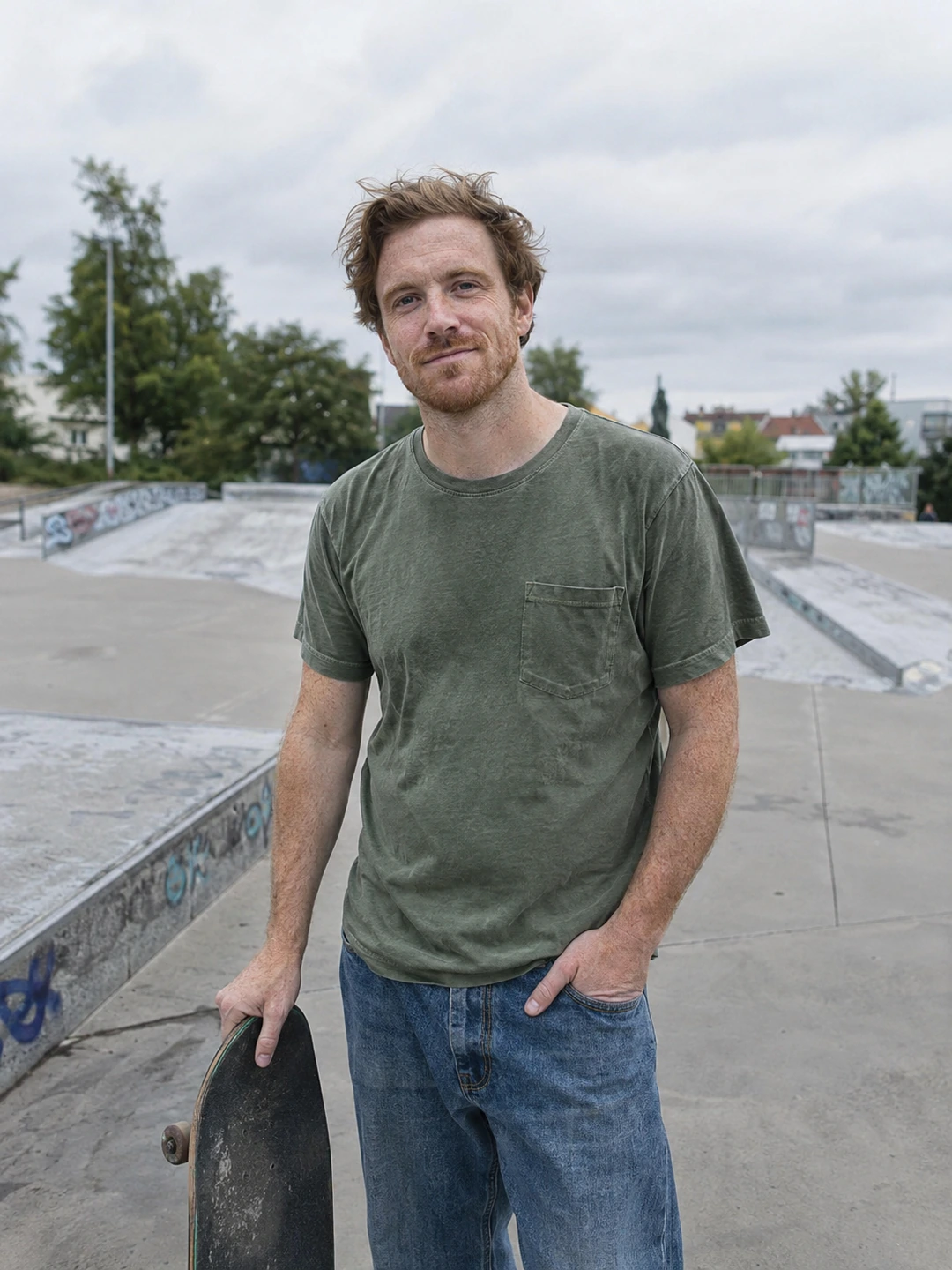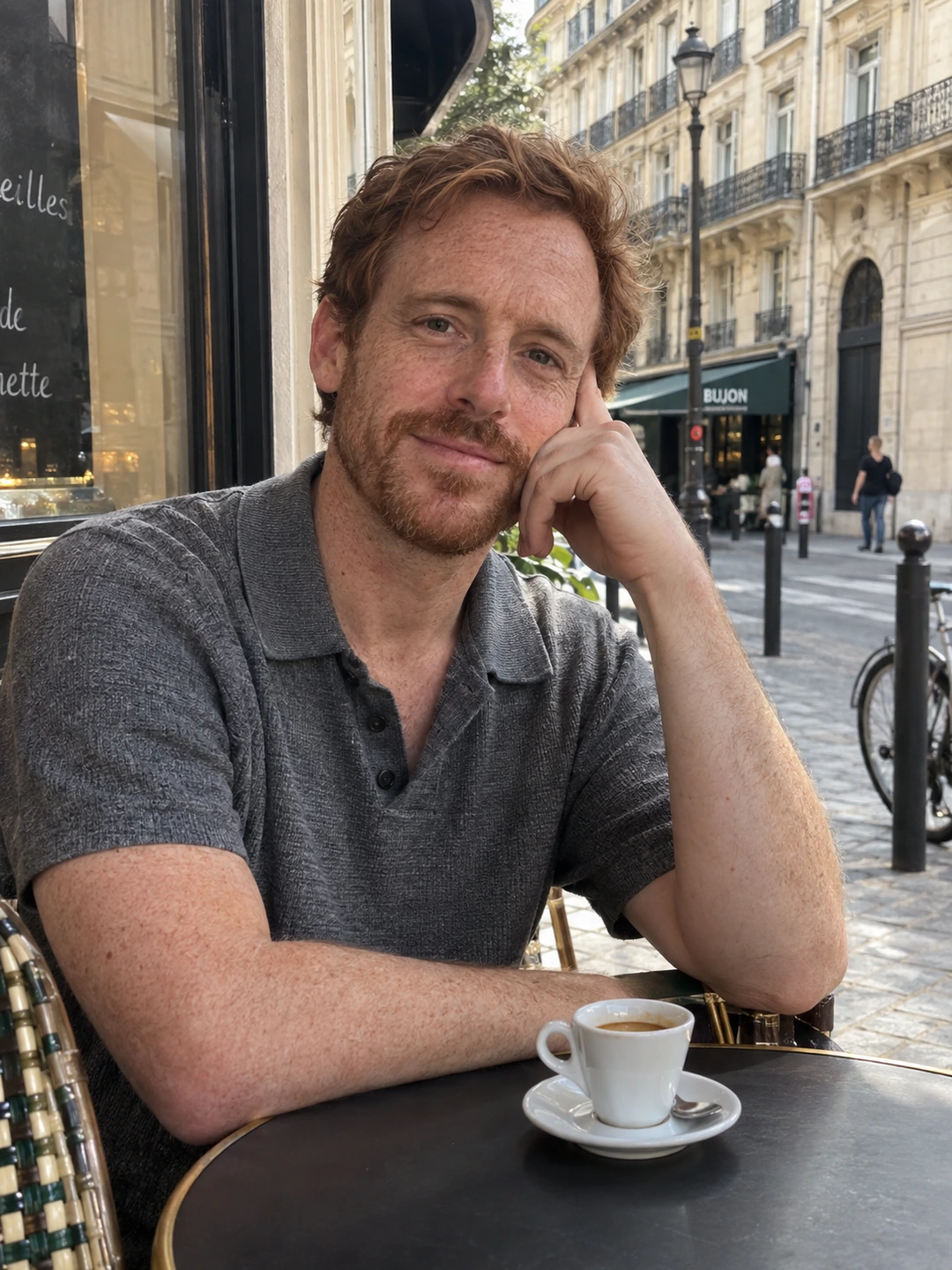
A small photo library prevents repeated editing and mistaken uploads. You only need to know which files are originals, which are candidates and which version is currently on your profile. Use albums or folders you already understand. The system should make a refresh easier, not become another project to maintain.
Create three clear stages
- Originals. Keep the source files you might want to crop or edit again. Avoid overwriting them with a platform-sized export.
- Shortlist. Collect the current candidates and remove near-duplicates from this working view. You can keep the other photographs in your general library.
- Published versions. Save the exact files you uploaded, with a note about the destination and date. This helps you understand which crop you are seeing later.
If you use generated portraits, label them separately from real event photographs. A generated café scene and a picture from a café visit should not become indistinguishable in your workflow. Keep the approved source selfies and review notes nearby if useful. You do not need to attach private personal information to filenames; simple descriptive labels are enough.
Use names that answer one practical question
A name such as ‘park-portrait-square-v2’ can tell you more than ‘final-final-new’. Add a date when it helps you distinguish a current appearance from an older one. If your phone makes renaming awkward, use an album name or a short note instead. The goal is to find the right version without opening twenty almost identical images.
- 1Bring candidates into one place. Choose current images from your camera roll and any approved generated set. Do not copy every photo you have ever considered.
- 2Record each candidate’s job. Mark it as opener, wider view or activity context. This reveals repetition before you start making exports.
- 3Keep edits linked to a source. Use a consistent label or note so you can return to the original when another crop is needed.
- 4Save the published set. Record the upload date and which app uses each version. A screenshot can document the layout, but keep the actual photo files too.
- 5Retire outdated candidates. Move them out of the active shortlist when they no longer represent you. Keeping them as memories does not require keeping them ready for upload.
Make the next refresh a small task
When something changes, you can replace the affected role instead of rebuilding the whole library. A new haircut may call for a current opener. A better hobby picture may replace a repetitive supporting image. Use your notes to see what the old file was doing, then choose a replacement with the same purpose or a better one.
Keep sharing deliberate. If a friend helps review pictures, send only the shortlist you want them to see rather than a link to your whole camera roll. Agree before they share or keep outtakes. You do not need to store chat histories, other people’s profiles or personal dating details alongside the photo library to make the system useful.
Keep generated candidates identifiable
If you use PhotoDating.ai, review the generated portraits before moving any into your published set. Keep their origin clear and reject inaccurate likenesses rather than saving every output as an approved option.
Start the next update with the refresh checklist and the photo audit. Use the dating profile photos guide to check the set’s balance, then keep only the exports you actually intend to upload in the active folder.