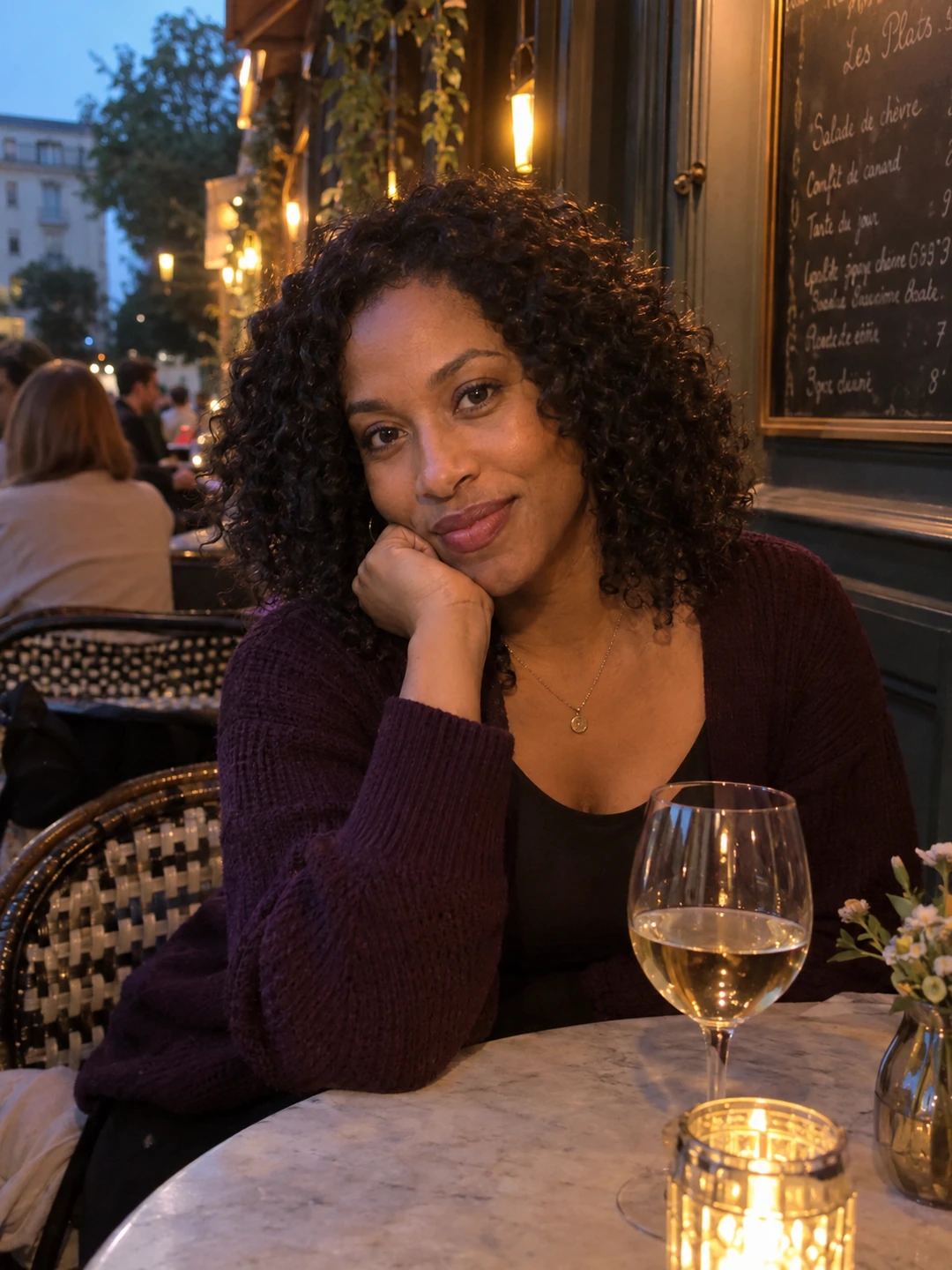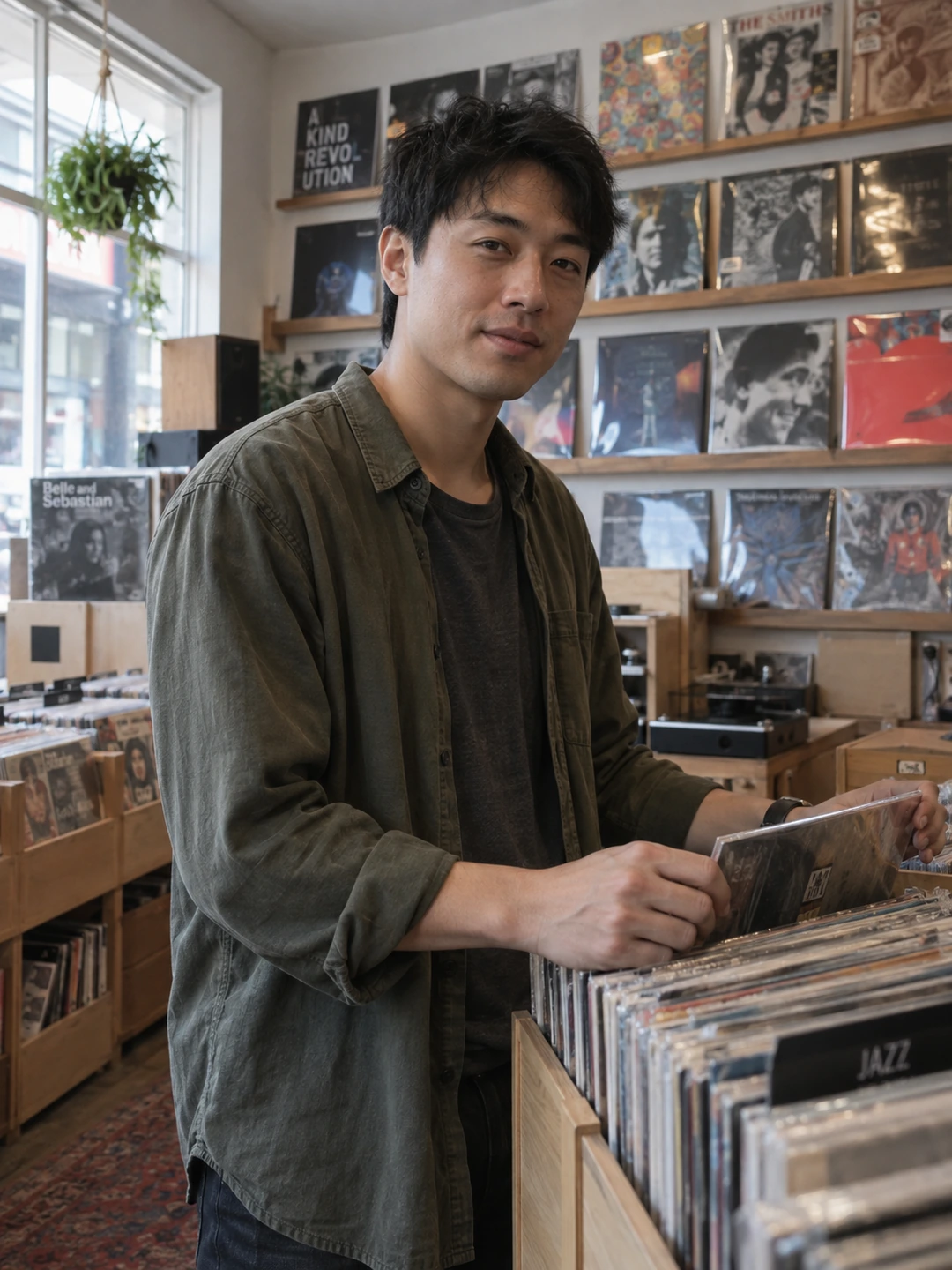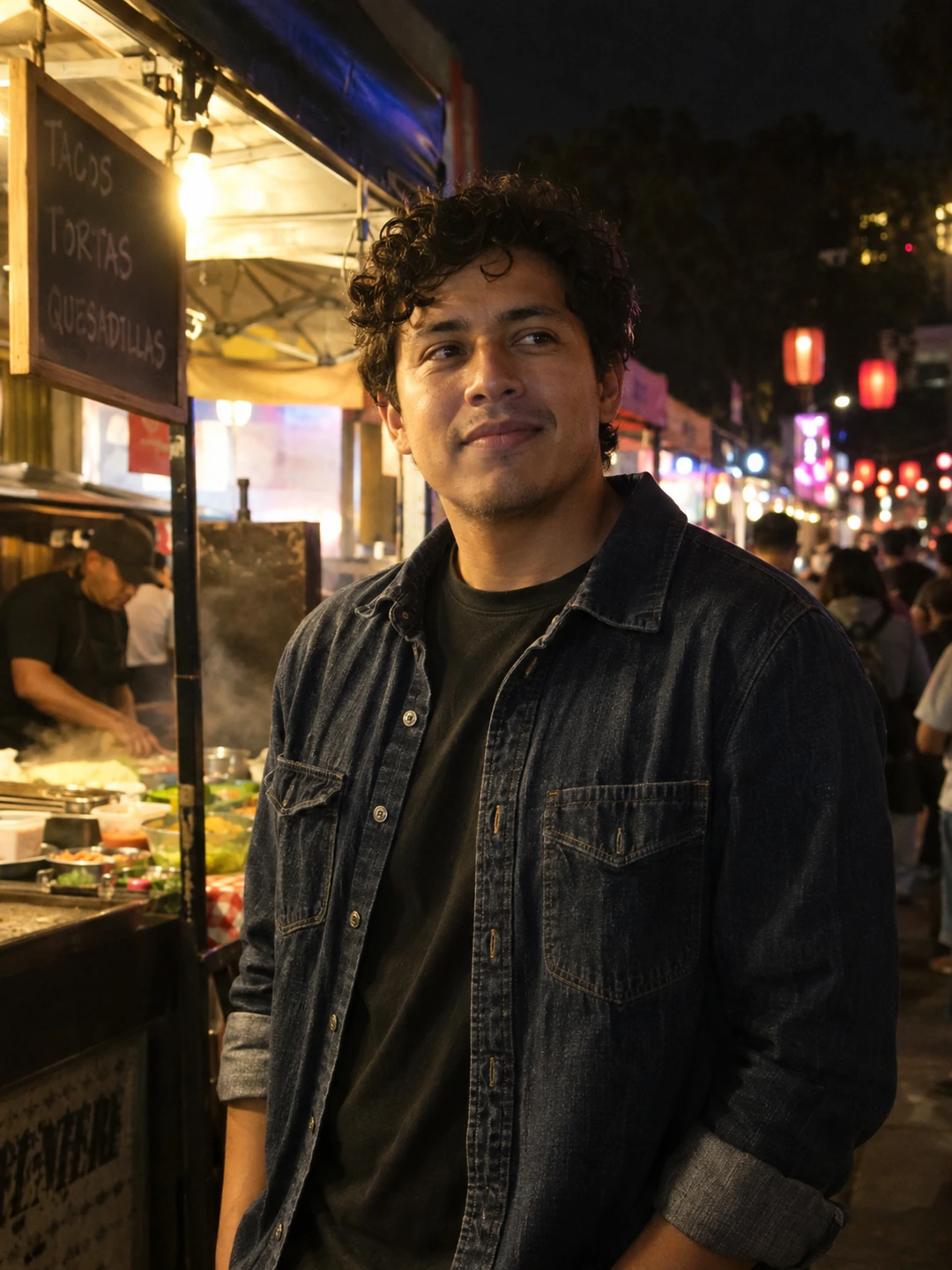
Portrait mode is useful when the effect makes you clearer without making the photograph look cut out. Do not choose it automatically for every dating picture. Take a normal photo as well, compare the two and keep the version that shows your face and the intended setting more convincingly. More blur is not the same as a better introduction.
Understand the effect you are choosing
Apple describes Portrait mode as a depth-of-field effect that keeps the subject sharp while blurring the background. On supported iPhones, you can adjust the effect after capture or remove it in Photos. Available controls depend on the model and software version, so follow the prompts on your device. This article’s review method also works for other phones with a similar mode, without assuming they share Apple’s exact controls.
Make a fair comparison
- 1Keep the scene simple. Choose a comfortable position and take a normal photograph first. Check that the face is clear before adding an effect.
- 2Take a portrait-mode version. Keep the framing and expression as similar as practical. Follow any distance or light instructions the camera displays rather than forcing a shot it cannot capture well.
- 3Compare at profile size. Look at the person before zooming into details. Ask whether the blur helps the face stand out or removes context the picture needed.
- 4Compare the edges closely. Inspect hair, glasses, ears, hands and anything held near the body. Look for odd transitions that make part of you seem blurred or pasted onto the scene.
- 5Keep a reversible choice. Preserve the original and use the available adjustment controls if the effect is too strong. If the normal image is clearer, use it without treating that as a failure.
Decide whether the background has a job
A plain portrait may benefit from a less prominent background. A cooking or music picture may depend on the setting to explain the activity. If the effect makes the ingredients, instrument or location unreadable, you may lose the very detail that justified the image. Choose the effect according to the photo’s role, not according to a rule that every profile image needs a soft background.
- For the opener. Prioritise a clear face and believable edges. A modest effect can be enough when the background is already simple.
- For an activity. Keep the relevant context understandable. The activity should not become an indistinct shape behind a portrait.
- For a group memory. Check every person’s edge and visibility, but remember that a clear solo alternative may be simpler for a dating profile.
Do not use background blur to avoid checking what is visible. It can leave recognisable people, text or locations in the frame. Recompose around information you do not want to publish before relying on an effect. A different camera position often gives you a cleaner starting point than increasingly strong blur.
Generation is a different process
PhotoDating.ai creates new portraits from your selfies rather than adjusting the depth effect in an existing photograph. Inspect likeness and scene details in generated results just as carefully as you inspect a phone portrait.
For composition, use the dating photo crop guide. Review the whole set with the dating profile photos guide, and keep the normal photo available if the uploaded portrait effect looks distracting in the app.