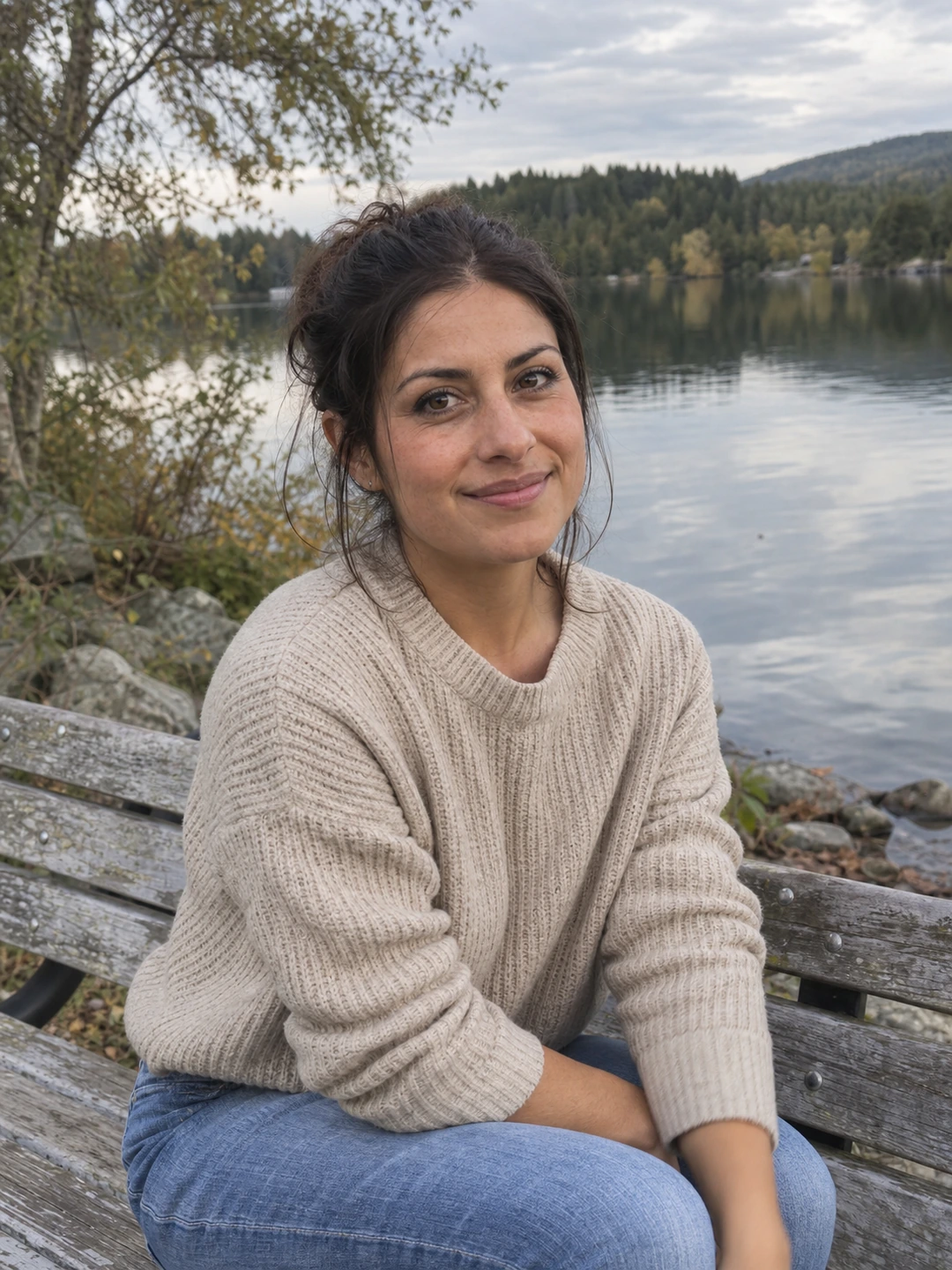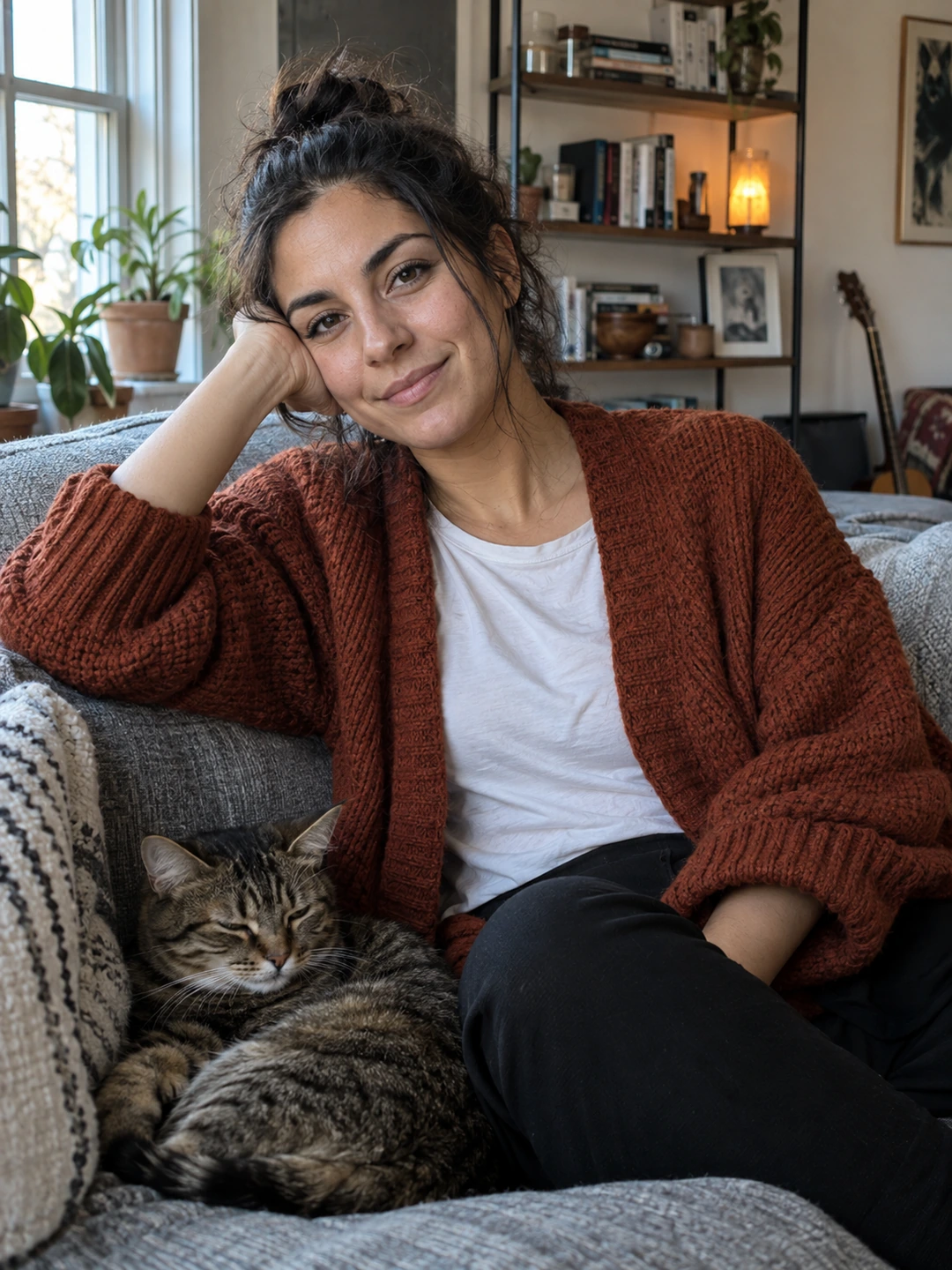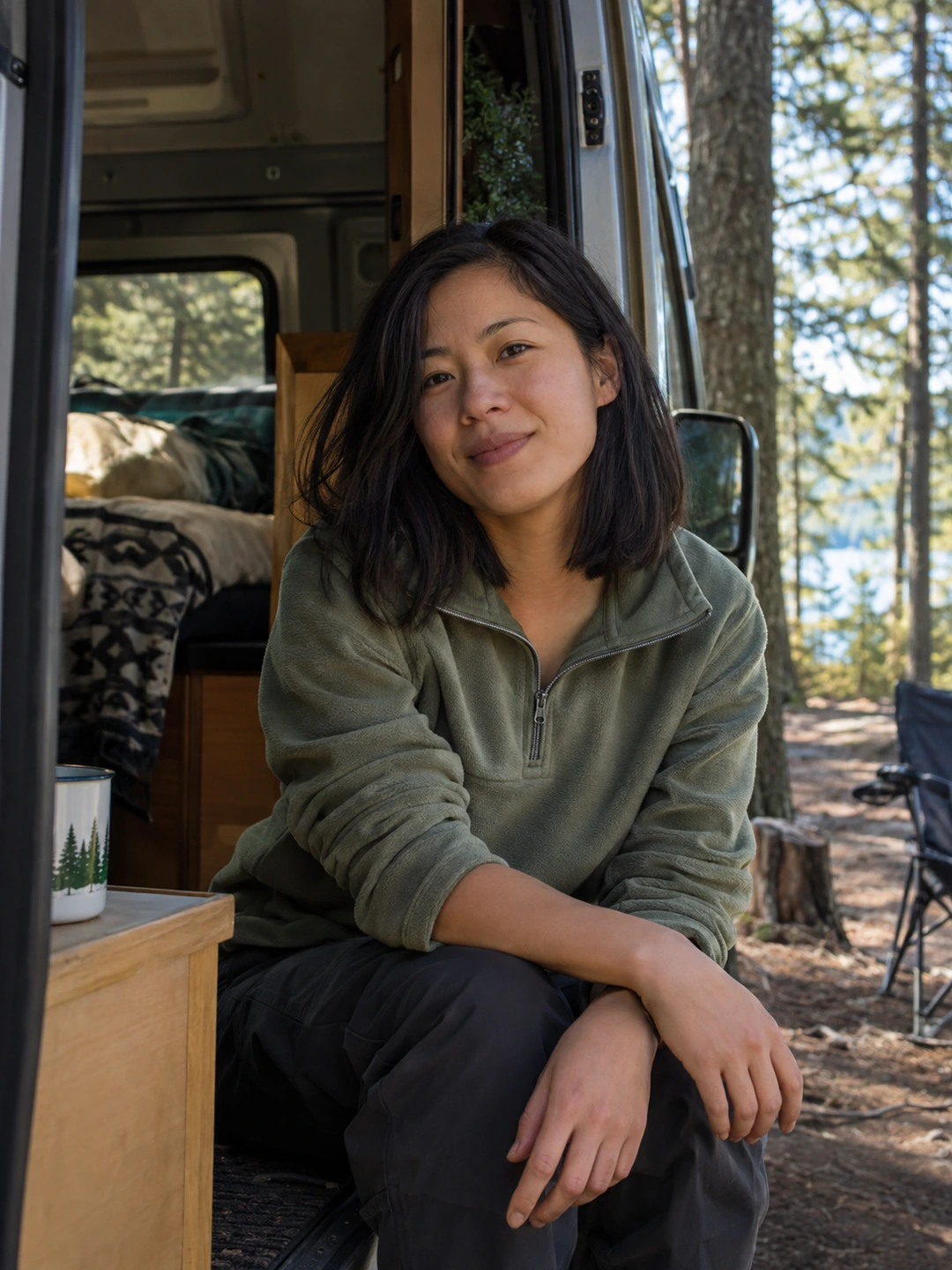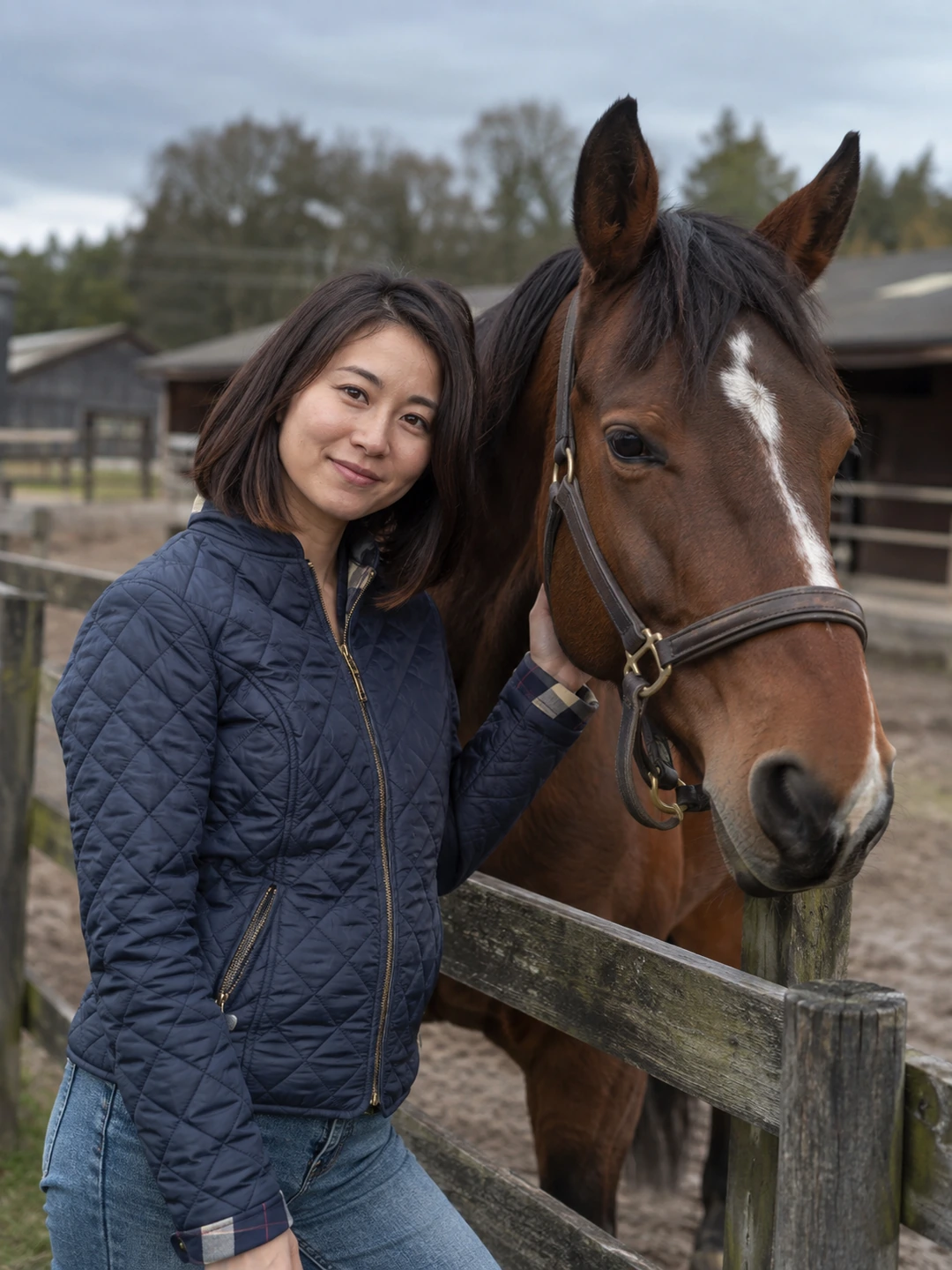
A speaker headshot needs to work in the organiser’s layouts and help attendees recognise you. Start with the submission brief rather than guessing a standard size. An event may use the image on a website, in a programme and in social announcements. Ask which versions are required, then send a small, clearly labelled pack.
Read the brief for deliverables
- Image shape and dimensions. Use the organiser’s requested crop and file requirements. Do not assume a LinkedIn export is suitable for every event surface.
- Background treatment. Check whether they need a full portrait, a neutral background or another specific asset. Ask before supplying a cutout that may not fit the design.
- Current appearance. Choose a portrait that will help someone identify you at the event, including your usual glasses and hairstyle.
- Credit and permission. Confirm that you can supply the image for the intended use and include any required credit in the requested format.
Prepare the portrait for multiple placements
Keep a wider original and create only the exports the organiser asks for. A tight circle-ready crop can be useful for a small speaker card but unsuitable for a landscape announcement with text beside you. If the brief is unclear, ask whether they would prefer the uncropped source. You can save the design team time without sending a folder full of near-duplicates.
- 1Choose one approved portrait. Compare current likeness and expression before considering styling. A recognisable image matters more than an unusually dramatic pose.
- 2Make the requested crop. Preview the face at the likely card size and check that hair, glasses and shoulders are not cut awkwardly.
- 3Label the file clearly. Use your name and the intended version, following the organiser’s naming instructions if supplied.
- 4Keep supporting information separate. Send your name, role, organisation and short biography in the requested fields. Do not rely on text embedded in the image.
- 5Review a proof when available. Check that the correct name and portrait are paired and that the automatic crop still works.
Maintain a reusable speaker pack
Store the approved master, a short note about usage and the date you last reviewed your appearance. Keep event-specific exports in a separate folder. The next organiser may need a different crop, so avoid treating the last submitted file as your only source. Update the pack when the portrait no longer represents you or when a new version gives a clearer introduction.
Do not add badges, credentials or a staged conference background that implies a role you do not hold. The portrait supports the biography; it should not invent evidence of professional status. If an event has rules about generated imagery, follow them and ask for clarification before submitting an AI portrait.
Review before submitting a generated portrait
PhotoDating.ai headshots creates portraits from your own selfies. Check likeness, clothing and the organiser’s requirements. A generated image is an option to review, not automatic approval for every conference submission.
Use the headshot delivery checklist before sending and the crop guide for layout checks. Keep personal dating-profile images separate; the dating photo guide covers the wider mix useful in that context.